

September 27, 2026 — ERPNext integration, source document on product lots
Changes since September 11.
ERPNext integration
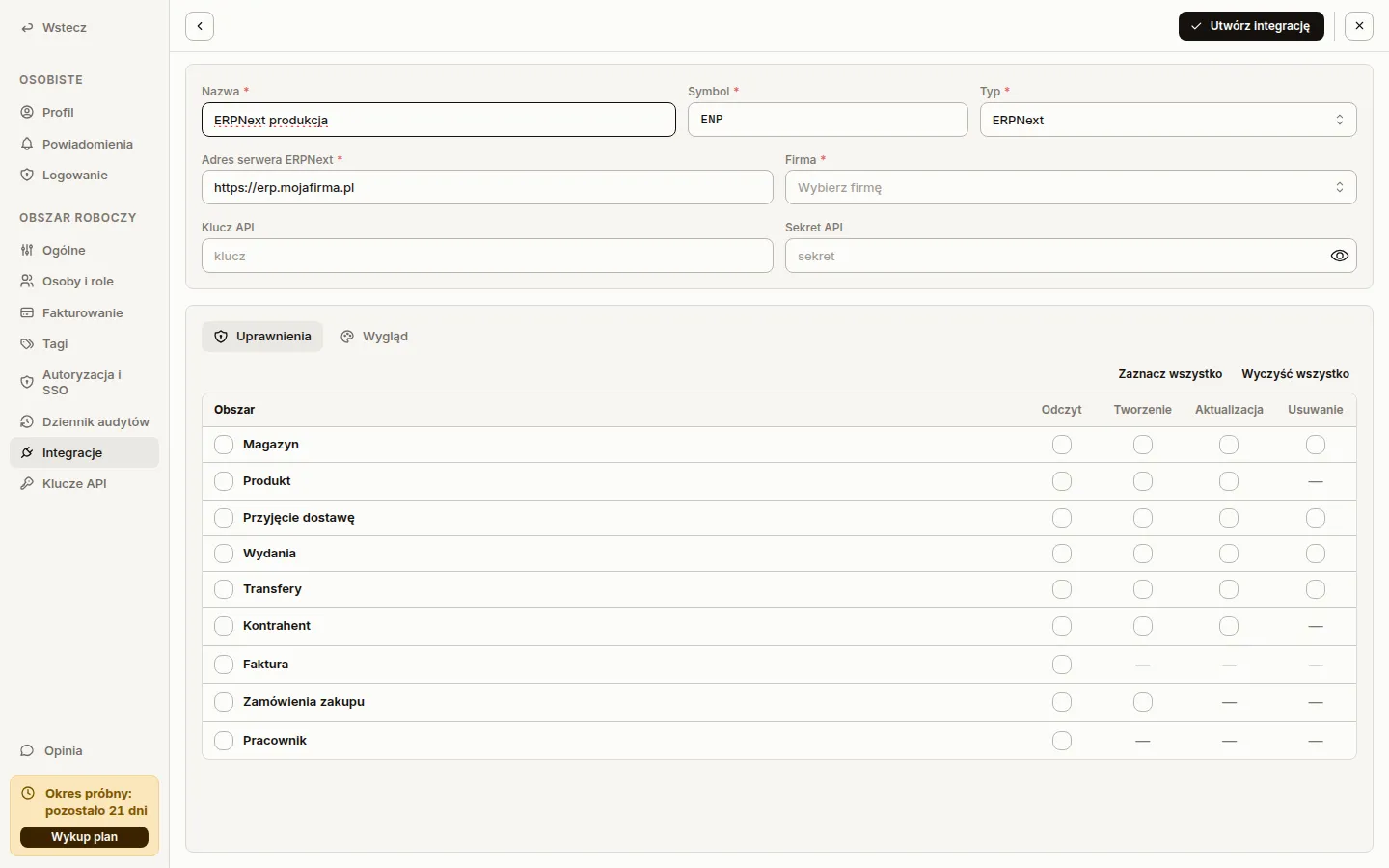
Section titled “ERPNext integration”Sancho now supports ERPNext version 16 alongside Comarch Optima and Fakturownia. Add it under Workspace → Integrations with Add integration and the ERPNext type. You need the server address, an API key and secret, and the company Sancho should work in. Nothing gets installed on the ERPNext server.
Warehouses, products, counterparties, receipts, issues and transfers work with ERPNext in the web app and on the phone. Stock documents can be created, committed, cancelled and deleted. Sancho reads and creates purchase orders, and a receipt created from an order stays linked to it in ERPNext. Invoices and employees are read-only.
ERPNext posts a document at a date and a time, so the receipt, issue and transfer header has a date-and-time field for it. On Android you pick the day first, then the time. Documents from Optima and Fakturownia keep a plain day.
The ERPNext configuration guide walks through the setup.
Integration code on lists
Section titled “Integration code on lists”Every integration now has a Code of up to three characters, set next to its name in the integration header. The code is required and must be unique in the workspace. The form tells you straight away which integration already holds it.
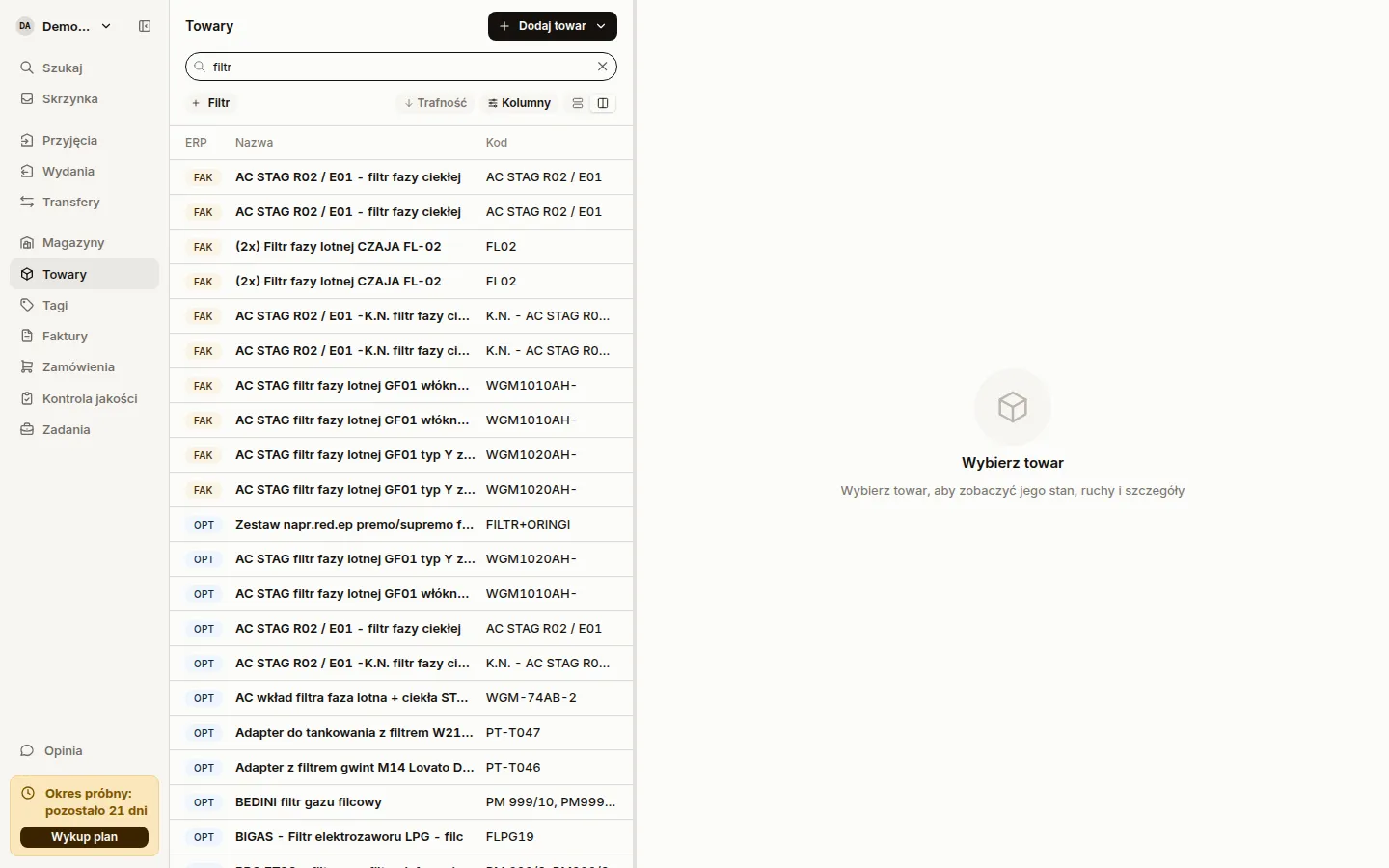
When a list draws on more than one integration, its first column, ERP, shows the code in the integration type’s colour. This covers receipts, issues, transfers, products, warehouses, invoices, purchase orders and projects, in table and card view. Two Optima databases share a colour, so the code is what tells them apart. The same code appears in the integration filter, in the integrations list in settings and on the Activity tab.
Existing integrations got a code derived from their name. Where two landed on the same one, the later got a number, such as OP2. Change it in the integration header. The Coloring tab is now called Display.
Source document on product lots
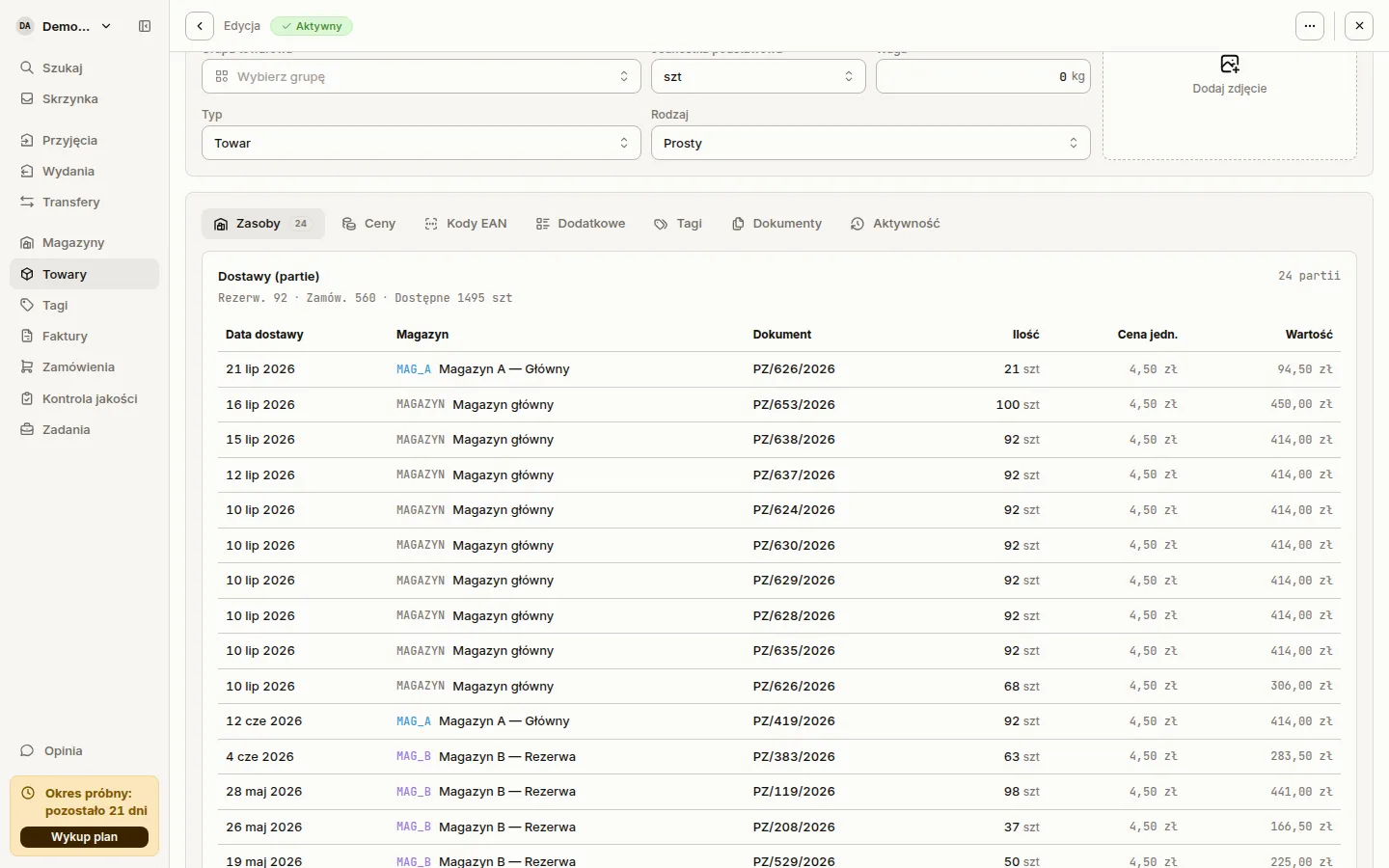
Section titled “Source document on product lots”A product from Optima shows, on its Resources tab, which document each lot arrived on: an external receipt, an internal receipt, or a transfer when the lot was moved in from another warehouse. Clicking the number opens a preview of that document with its relations, such as the purchase order and the invoice. No more digging through the DMS by hand.
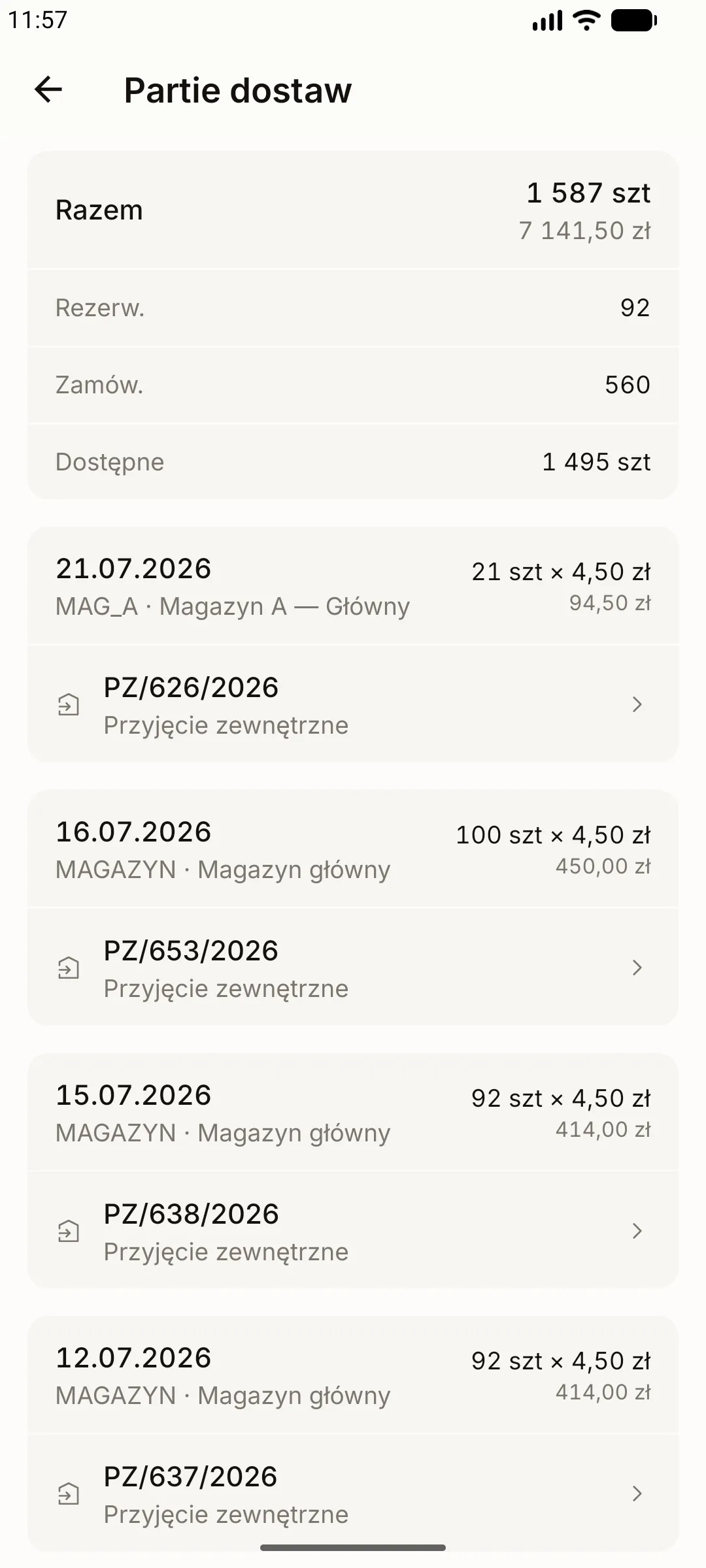
On the phone the document sits under each lot on the Delivery batches screen. Someone without access to receipts sees the number without a link.
Product placement and tags on the phone
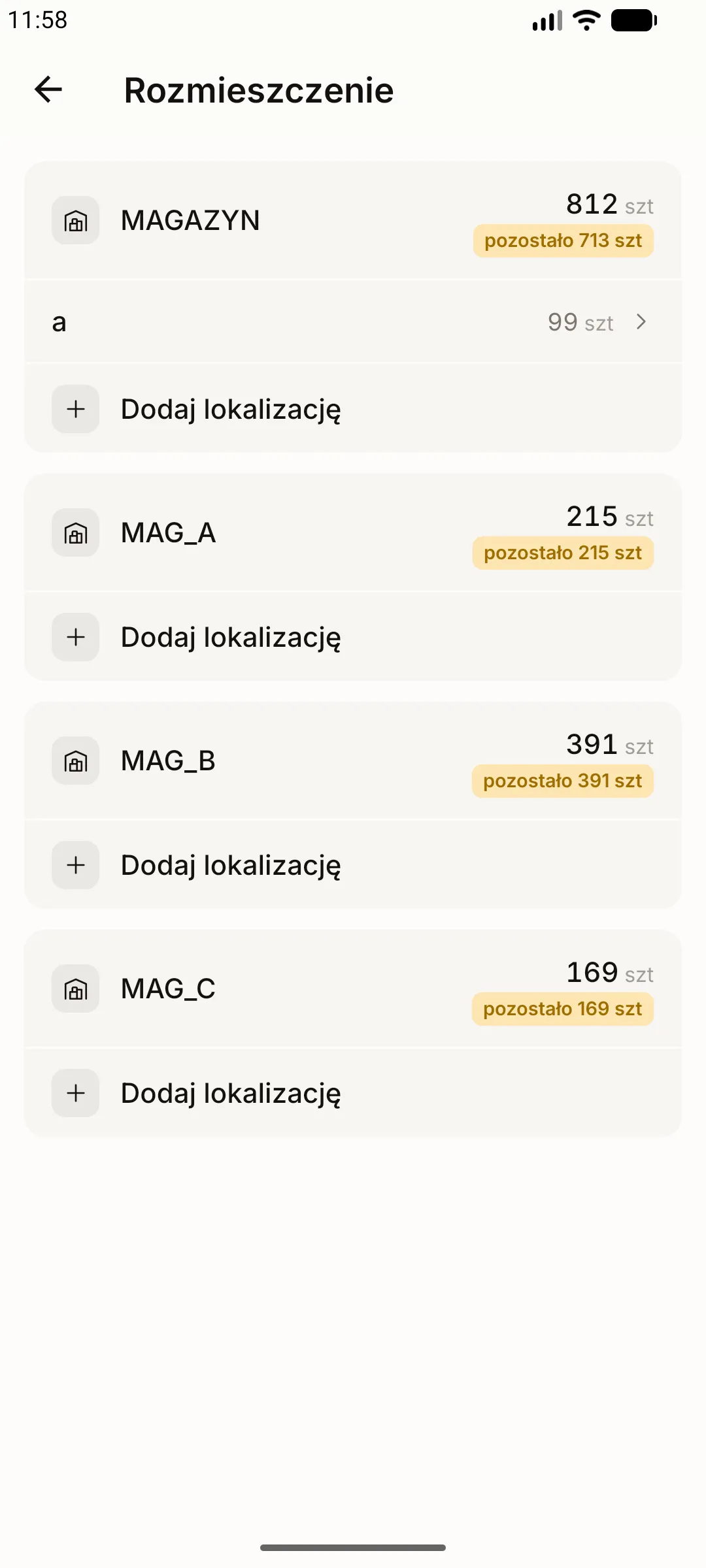
Section titled “Product placement and tags on the phone”A product in the mobile app has a Placement row. It opens one card per warehouse that holds the product, listing storage locations and quantities. The card header says how many units still have no location, or by how much the locations exceed the stock. Add location adds a new spot, and a listed location can be moved or given a different quantity. Saving sends only the differences. A save retried after an error does not add twice what already went through.
A product’s tags have a screen of their own, opened from the Tags row on the product. Tapping a tag opens it, and its Properties section lets you change the identifier and the note. Until now the phone could only pair a tag, and corrections needed the web app. A retired tag stays read-only. New tags are still paired with Pair tag on the product.
The tag type icon has one colour on the phone and in the browser: NFC blue, QR black and white. The unused product web address field is gone from the product.
Scanned issues pick from storage locations
Section titled “Scanned issues pick from storage locations”Scanning on a goods issue in the mobile app records which storage location the product came from. A scanned location label becomes the current location, shown in the header. Tap it to clear it. Scanning a product held in storage locations opens a sheet with location and quantity, the current location already selected. Scanning the same product again from another location adds a second pick, and the line quantity grows to the total.
The scan summary lists the picks under each line and highlights short lines. Tap a pick to change its location or quantity, or remove it. A product with no stock in any location gets the plain quantity sheet.
Reporter on the quality control list
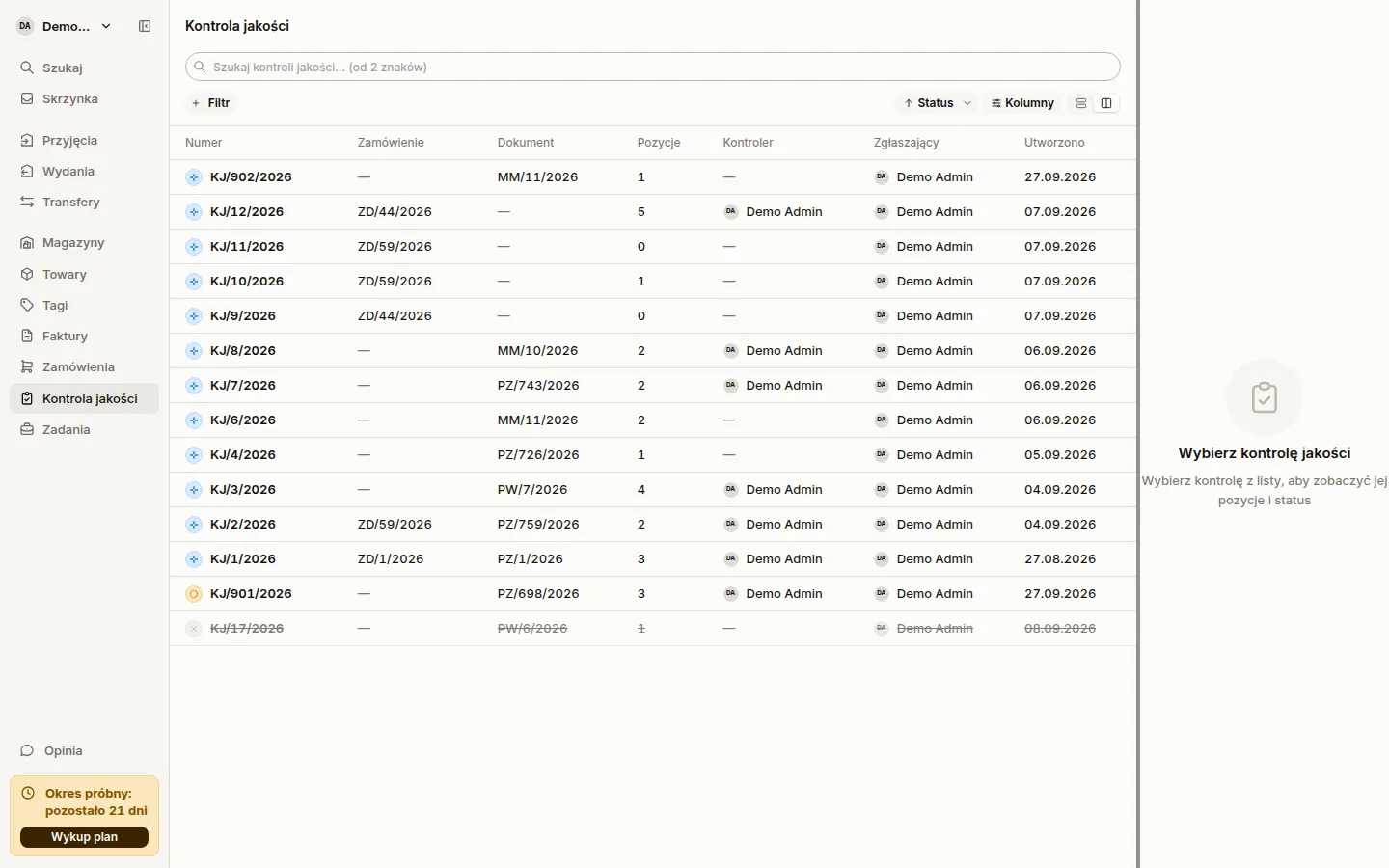
Section titled “Reporter on the quality control list”The Quality control list has a Reported by column, the person who created the control, and a filter of the same name. The filter offers only people who have ever raised a control and combines with status and creation date. In table view the Inspector and Reported by columns show the full name next to the avatar, so you no longer hover each row.
Fakturownia products
Section titled “Fakturownia products”A Fakturownia product shows and saves its product group, which is the Fakturownia category, its weight, and its type: goods or service. Composition, simple or bundle, is read-only because Fakturownia does not accept changes to it. You edit the EAN on the EAN codes tab as with other integrations, except that Fakturownia keeps a single code. Filtering the products list by group now works for Fakturownia too.
When the base unit is kilograms, the weight field on Optima and Fakturownia products warns as you type a weight, because a kilogram of the product weighs a kilogram. A product that already holds such a weight in the ERP can still be saved.
Last used document series
Section titled “Last used document series”The new receipt, issue and transfer forms open on the series you last saved that kind of document under, as long as the ERP still offers it. Otherwise they pick the first series, which on Optima is the default for that document kind. Sancho remembers the series only after a successful save, so an abandoned form changes nothing. On ERPNext the chosen series numbers the document.
Clearer save conflict dialog
Section titled “Clearer save conflict dialog”When Sancho refuses a save because the document changed since you opened it, the dialog is titled Changes not saved and says what happened: the document changed in the ERP, it was saved from your own account, in another tab or on a phone for example, or someone else saved it. Before, the wording could suggest the changes had gone through. The dialog asks you to reload the document and redo the changes.
Projects on DMS purchase orders
Section titled “Projects on DMS purchase orders”Since May the DMS order form stores the project in a different field, and Sancho did not see it. About 280 orders from that period now show their project on the order, on the project’s Purchase orders tab and in the project filter. An order raised against a sub-project shows the parent project. About 20 orders have the project typed in as text only. Pick it again in the DMS for Sancho to see it.
A supplier’s order acknowledgement no longer stands in for the purchase order as the source of its lines. Sancho reads the lines from the order document.
Under the hood
Section titled “Under the hood”- Accounts that sign in through Nextcloud or Google get their current name on every sign-in. Before, the people list could keep showing the login from before a name was set.
- The mobile sign-in screen shows an error next to the field and clears it as you correct it, instead of popping up a separate dialog.
- Quantity and weight fields on the phone open with the keyboard already up.
- After opening a related document from a product on the phone, you can open another product straight away. The app used to refuse it.